Suno Board → Suno Video Maker
Turn Suno songs into music videos with AI visuals, a visualizer, tracklists, and YouTube chapters — locally.
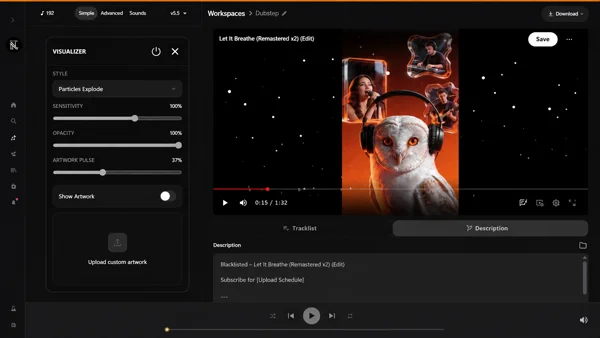
Suno Board includes a built-in video maker called the Board — a canvas where you can turn any Suno song into a music video with AI-generated images, an audio visualizer, synced lyrics, and a full 1920×1080 export. Build a single-track video or add multiple songs to a tracklist for compilation and album-style content. The Board also generates a YouTube-ready description with timestamps for every track. Everything renders locally in your browser, without opening a video editor or uploading your audio to any third-party service.
The fastest way to make a Suno music video is a tool that already has your songs, your lyrics, and your visuals in one place. Suno Board keeps the entire production inside your Suno workspace — no CapCut, no Premiere, no need to upload your audio into a third-party video tool. If you need lyric videos specifically, the Suno lyric video maker guide covers that workflow in detail.
Best for creators who want to
- → Turn a single Suno song into a finished music video
- → Build lyric videos without opening CapCut or a video editor
- → Add AI-generated visuals and a live visualizer to their tracks
- → Make playlist or album-style compilation videos from a Suno library
- → Generate YouTube descriptions and chapter timestamps automatically
- → Keep audio local during video creation and export

Written by the Suno Board team
Tested with the current Suno web workspace interface. Updated May 2026.
A Suno Song Without a Video Is Half a Release
Making a proper video for a Suno song is usually more work than it should be. Finding visuals, handling copyright risk, opening a video editor, and assembling everything into something publishable takes time that should be spent releasing music.
A real music video changes how the song lands. It gives viewers something to watch, keeps them in the video longer, and makes the release feel finished rather than provisional. That difference is visible in watch time, shares, and whether a viewer clicks through to the next track.
For creators building a serious AI music channel, the real problem is not using a still image. The problem is how long it takes to build a good release, how easy it is to end up with weak visuals, and how messy the full workflow becomes once you add tracklists, descriptions, and export.
YouTube allows creators to use AI tools, but channels still need content that feels original, meaningful, and valuable to viewers. A stronger visual layer — lyrics, visualizers, tracklists, AI imagery, and edited structure — gives your upload more creative substance without forcing you into a long manual production process.
The traditional path to a music video — source visuals, open a video editor, learn keyframes, export — is genuinely complex. Suno Board's Board workspace removes that complexity by integrating AI image generation, visualizer rendering, lyric overlay, and export into a single browser-based workflow. No installation, no subscription to a video editor, no switching between five different apps.
Manual Music Video Workflow vs. Suno Board
Here is what building a music video the traditional way looks like compared to using Suno Board's Board workspace.
| Feature | Manual / Other Tools | Suno Board |
|---|---|---|
| Works inside Suno | ✗ | ✓ |
| Uses your Suno tracks directly | ✗ | ✓ |
| Lyrics from your Suno song | Manual copy/paste | ✓ |
| AI-generated visuals in the workflow | Separate tool required | ✓ |
| Audio visualizer included | Extra plugin/tool | ✓ |
| Multi-song tracklist videos | Manual editing | ✓ |
| YouTube chapters + description | Manual timestamps | ✓ |
| No third-party audio upload | Depends on tool | ✓ |
| Export at 1920×1080 | ✓ | ✓ |
| No video editing skills required | ✗ | ✓ |
How to Create a Suno Music Video — Step by Step
Once Suno Board is installed, the Board workspace is one click away from the Suno Board panel. Your Suno library, lyrics, and visuals are all available from inside the same canvas.
[ GIF: Board canvas → AI image generation → video creation ]
Open Board → select track → add visuals → choose render mode → preview → Download Video
How to make a Suno music video: step by step
5 steps — from Suno track to local MP4
Go to suno.com/create or your Suno library
Suno Board only activates on those pages — the panel and all tools will not appear anywhere else on Suno.
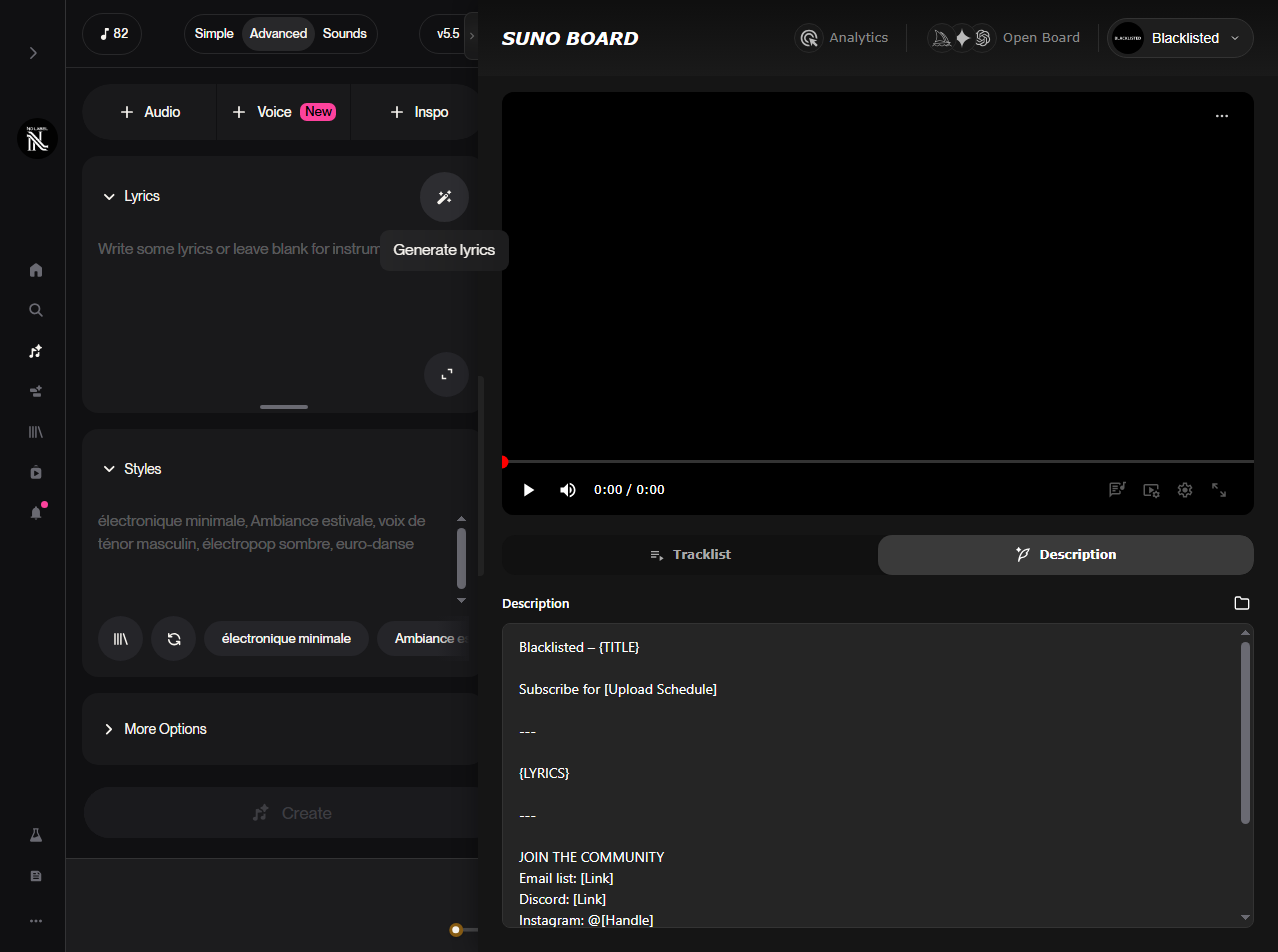
Open the video section and drag and drop a song
Click into the video section, then drag the track you want to turn into a music video directly into the workspace so the video panel loads that song and its cover.
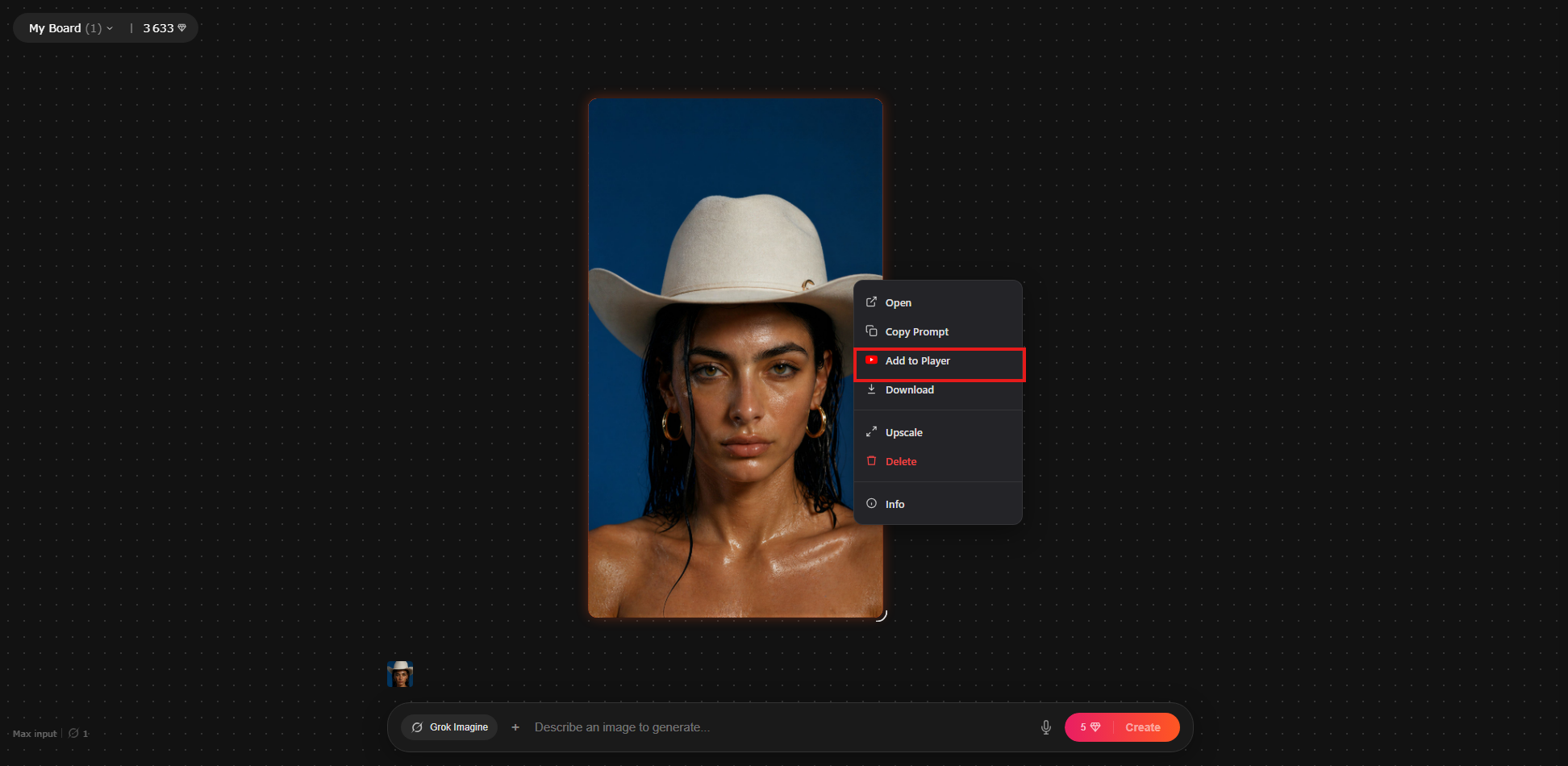
Create your AI-generated images
Use the image controls in the video workspace to add AI-generated visuals to the player.
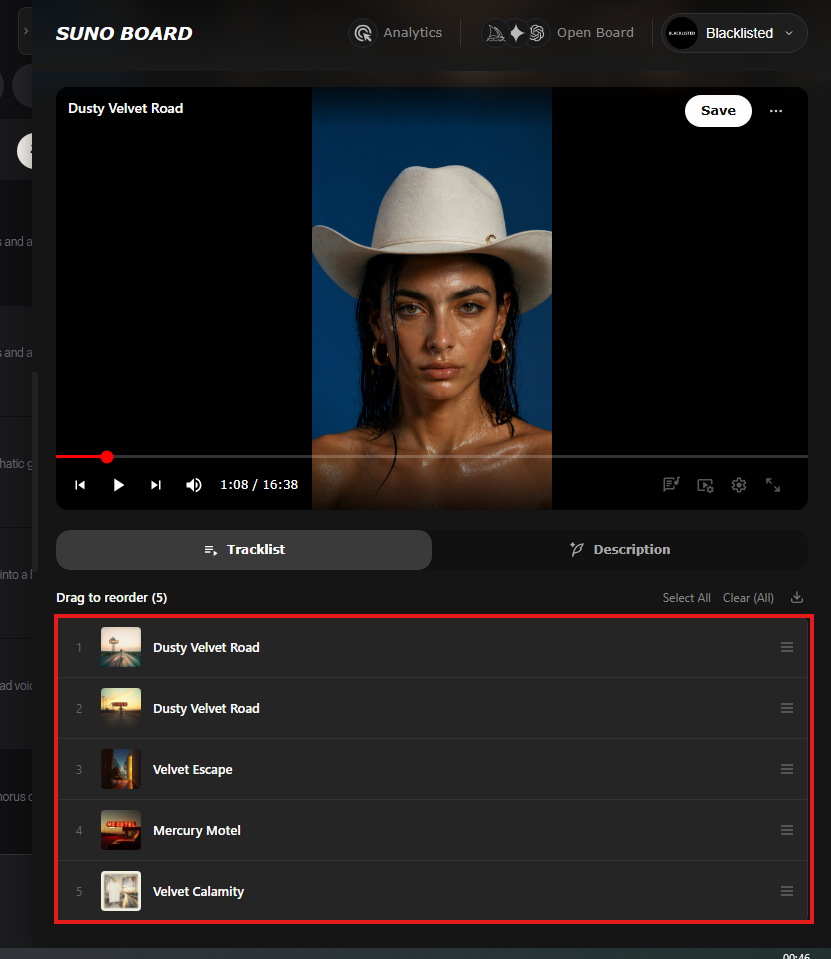
Build a tracklist
Add more tracks from your Suno library to create a multi-song video. The tracklist view shows all songs in the project in sequence.
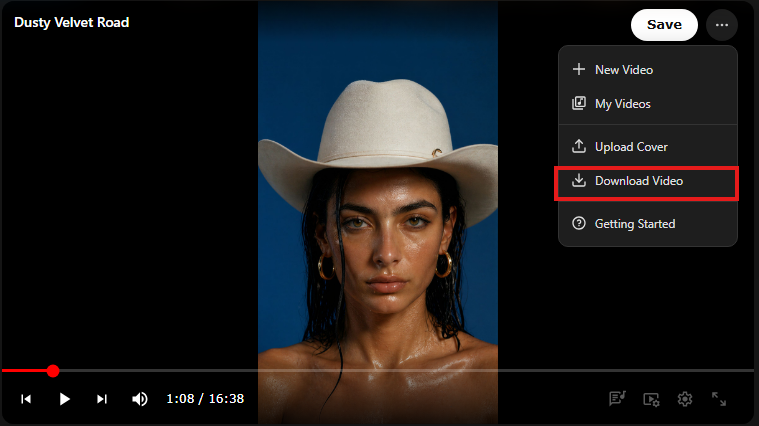
Download your music video
Click Download Video. The download stays at 1920×1080, keeps the image quality strong, and muxes the original Suno audio directly into the final MP4 so the song quality stays a priority.
What the Suno Board Video Maker Includes
The Board is designed for the full production workflow — from raw Suno track to a finished video ready to upload. Here is what is built into the workspace.
- AI-generated images — generate images inside the Board and place them on the canvas in a Polaroid-style layout. No sourcing visuals from a separate tool or stock library.
- Four render modes — visualizer only, lyrics with visualizer, lyrics only, or static visuals. Each produces a complete 1920×1080 video; the choice depends on the visual feel you want.
- Multi-song tracklist — add multiple Suno tracks to a single video project. Build compilations, album videos, or playlist-style content from your library without leaving the Board.
- Audio visualizer — a real-time visualizer that reacts to the audio in the video. Combine it with AI images and lyrics for a layered visual result.
- Lyrics overlay — lyrics from your Suno library can be displayed over the video in render modes that include text. For a text-first workflow, see the Suno lyric video maker guide.
- 1920×1080 export — Full HD output for YouTube and horizontal music videos with strong image quality and the original Suno audio muxed directly into the final file.
- Local rendering — the final video assembly and export happen on your device. Your Suno audio is not sent to Suno Board's servers. If you generate AI visuals through supported model providers, those requests go to the selected provider while your audio stays local.
Common Problems When Creating Music Videos from Suno Songs
If you have tried to build a music video from a Suno track before, you have likely hit at least one of these walls.
No integrated source for visuals
Most music video workflows require you to source images, stock footage, or AI-generated visuals from a completely separate tool — then import them into your video editor. Suno Board generates images directly inside the Board canvas so the visual creation and video assembly happen in the same workspace.
No multi-song video support in other tools
Creators who want to publish a full album or compilation video typically have to manually stitch tracks together in a video editor. Suno Board's tracklist view handles multi-song video projects natively — add tracks from your library, set the order, and export a single video.
Uploading audio to a third-party video tool
Most online music video tools require uploading your audio file before anything else. Suno Board renders entirely in your browser using the audio from your Suno session. No file upload, no third-party server, no risk.
Video editors with steep learning curves
Premiere Pro, After Effects, and DaVinci Resolve are powerful but require real time investment to learn. Most Suno creators are not video editors. The Board is built to be usable without any video editing experience — select, arrange, export.
100% Local — Your Audio Never Leaves Your Computer
Suno Board does not upload your songs to our servers. Downloads and exports happen locally in your browser.
When you create a music video with Suno Board, the final video rendering happens on your device. Your Suno audio is not sent to Suno Board's servers during video creation or export. If you choose to generate AI visuals through supported model providers, those image generation requests are handled by the selected provider — your Suno audio remains local throughout.
This applies to single-track videos, multi-song tracklist exports, and every format the Board produces.
For Suno creators, local rendering matters because Suno's platform has access to your active session. Any extension that routes audio through an external server is asking you to trust that server with your account. Suno Board is engineered so that trust is never required.
After the Video: Publishing on YouTube and TikTok
Once your music video is exported, the next step is uploading it. For YouTube, Suno Board's auto-generated description gives you a ready-to-paste chapter list — paste it into the description field when you upload, and YouTube automatically creates clickable timestamps. For a full guide to the upload workflow, see the Suno to YouTube guide.
For shorter-form content, the exported MP4 can be clipped or cropped for TikTok and Shorts. The 1920×1080 horizontal format works on YouTube as-is. For vertical platforms, trim the section you want to use and crop to 9:16 before uploading. If TikTok, Reels, or Shorts is your main publishing goal, the Suno to TikTok guide covers the short-form workflow in detail.
Who Uses Suno Board to Make Music Videos
Suno Board's video maker fits anywhere a creator needs to go from AI-generated track to publishable video quickly and without a production team.
YouTube music channels
Publish full-length music videos with AI imagery and visualizers.
Album releases
One video, full tracklist, auto-generated chapters. Done.
Single releases
Give every new track a real video on drop day.
Playlist compilations
Build themed compilations — lo-fi, sleep, focus — across a catalog.
Lo-fi and ambient channels
Long-form study/sleep videos with a consistent visual style.
Music promotion
Shareable visual content for social media and community posts.
Visualizer channels
Audio-reactive visualizer content for electronic and experimental music.
AI music creators
Full production pipeline without a team or a budget.
Music Video Styles You Can Create
The Board's render modes and AI image generation let you match the visual direction to the song's genre and tone.
Polaroid photo wall
AI images in a Polaroid layout with a live visualizer behind them.
Visualizer + lyrics
Audio-reactive waveform with synced text. Clean and fast to produce.
Cinematic dark canvas
Full-bleed dark background with AI images as the only visual element.
Abstract visualizer
No text, no images — just audio-reactive motion for electronic and ambient tracks.
Tracklist compilation
Multi-song video with a visible tracklist and auto-generated YouTube chapters.
Lyrics over imagery
AI-generated visuals with the lyrics displayed on top for a lyric video with cinematic depth.
Frequently Asked Questions
How do I make a music video from a Suno song? ↓
Install Suno Board from the Chrome Web Store. Open Suno.com, then open the Board workspace from the Suno Board panel. Select your track, add visuals to the canvas, choose a render mode, preview the result, and click Download Video to save the MP4 locally.
Does Suno Board generate AI images for music videos? ↓
Yes. Suno Board's Board canvas lets you add AI-generated images to your video. Images appear in a Polaroid-style layout on the canvas alongside your visualizer and lyrics, without leaving the Board workspace.
Can I make a music video with multiple Suno songs? ↓
Yes. Suno Board's tracklist view lets you add multiple songs to a single video project. Build compilation videos, full album releases, or playlist-style content from your Suno library in one export.
Does Suno Board automatically generate YouTube descriptions and chapters? ↓
Yes. The Description tab in the Board generates a YouTube-ready description with timestamps for each track in your tracklist. Copy and paste it directly into the YouTube description field when uploading to create clickable chapter markers.
What video format does Suno Board export music videos in? ↓
Suno Board exports music videos as MP4 files at 1920×1080 resolution. The export keeps image quality high and muxes the original Suno audio directly into the final file.
Can I use Suno Board music videos on YouTube? ↓
Yes. The MP4 from Suno Board can be uploaded to YouTube. Suno Pro and Premier subscribers have commercial rights from Suno's terms of service. YouTube monetization eligibility depends on following YouTube's content policies, including guidelines around reused and repetitive content. Music videos with AI-generated visuals and visualizers add genuine creative value to your upload.
Does Suno Board upload my audio when creating a music video? ↓
No. Suno Board renders music videos entirely within your browser. Your audio files are never uploaded to Suno Board's servers or any third-party service. Everything — image generation, video rendering, and export — happens locally on your device.
Is Suno Board free for music video creation? ↓
Suno Board is free to install from the Chrome Web Store. The Board workspace, video maker, tracklist view, and export features are available within the extension.
What is the difference between the Suno lyric video maker and the Suno video maker? ↓
The lyric video maker is the fastest path: lyrics over a background, with an optional visualizer. The full video maker goes further — AI-generated images, Polaroid-style canvas layouts, multi-song tracklists, and auto-generated YouTube descriptions. Both export at 1920×1080 and run entirely locally.
Can I add a visualizer to my Suno music video? ↓
Yes. The visualizer is one of the four render modes in the Board: visualizer only, lyrics with visualizer, lyrics only, or static visuals. You can combine the visualizer with AI-generated images and lyrics in the same export.
Do I need video editing experience to create a Suno music video? ↓
No. The Board workspace is built for creators without a video editing background. Visual styles are selectable, images are generated within the workflow, and the export is one click. No timeline editing, no keyframes, no software installation required.
Can I make a TikTok or Shorts clip from a Suno Board music video? ↓
Yes. The 1920×1080 MP4 from Suno Board can be clipped and cropped to vertical 9:16 for TikTok, Instagram Reels, and YouTube Shorts. Take the exported file into a basic editing app, trim the section you want, crop to vertical, and upload. TikTok requires AI-generated content to be labeled using their native AI content toggle.
 Install Suno Board from the Chrome Web Store
Turn Suno songs into music videos with AI visuals, a visualizer, tracklists, and YouTube chapters — locally.