Guide · YouTube
How to turn a Suno song into a YouTube-ready music video: step by step
You can go from a Suno track to a YouTube-ready music video in about five minutes. Open Suno, click the Suno Board icon, open the video section, drop a song into the workspace, add visuals, lyrics, or a visualizer, generate the YouTube description, and download a 1920×1080 MP4. No video editor required.
Install Suno Board — free to install Install Suno Board — free to install
Best for

Written by the Suno Board team
Suno Board is built specifically for the Suno creator community. This guide reflects the actual video download workflow inside the Suno Board Chrome extension — tested against the video workspace that creators use every day to prepare Suno songs for YouTube.
Why a music video outperforms audio-only on YouTube
YouTube requires a video file — you cannot upload audio alone. The standard workaround is pairing audio with a static cover image. That works, but a static image gives viewers nothing to watch. A visualizer that reacts to the beat, lyrics appearing on screen, or AI-generated artwork filling the frame gives viewers a reason to stay for the entire runtime.
Watch time and viewer retention are major signals in how videos perform on YouTube. A video with motion, lyrics, and visual structure gives viewers more reasons to keep watching than a still image. Suno Board closes the gap between having a great Suno track and having a YouTube video worth watching.
Audio upload vs. music video with Suno Board
| Feature | Audio + Static Image | With Suno Board |
|---|---|---|
| Upload format | Audio file + static image | Ready-to-upload MP4 |
| Visual movement during playback | Static image only | Visualizer and/or lyrics in motion |
| Audio-reactive visualizer | ✗ | ✓ |
| Lyrics overlay | ✗ | ✓ |
| YouTube chapters | Manual timestamps | Auto-generated from tracklist |
| YouTube description | Written from scratch | Template generated by Suno Board |
| Multi-song tracklist video | Manual editing required | Built-in tracklist mode |
| Uses your Suno tracks directly | ✓ | ✓ |
| Time to upload-ready | 30–60 min | Minutes instead of a full editing session |
How to turn a Suno song into a YouTube-ready music video: step by step
7 steps — from Suno track to YouTube-ready MP4
Go to suno.com/create or your Suno library
Suno Board only activates on those pages — the panel and all tools will not appear anywhere else on Suno.
Open the video section and drag and drop a song
Click into the video section, then drag the track you want to turn into a YouTube-ready music video directly into the workspace so the video panel loads that song and its cover.
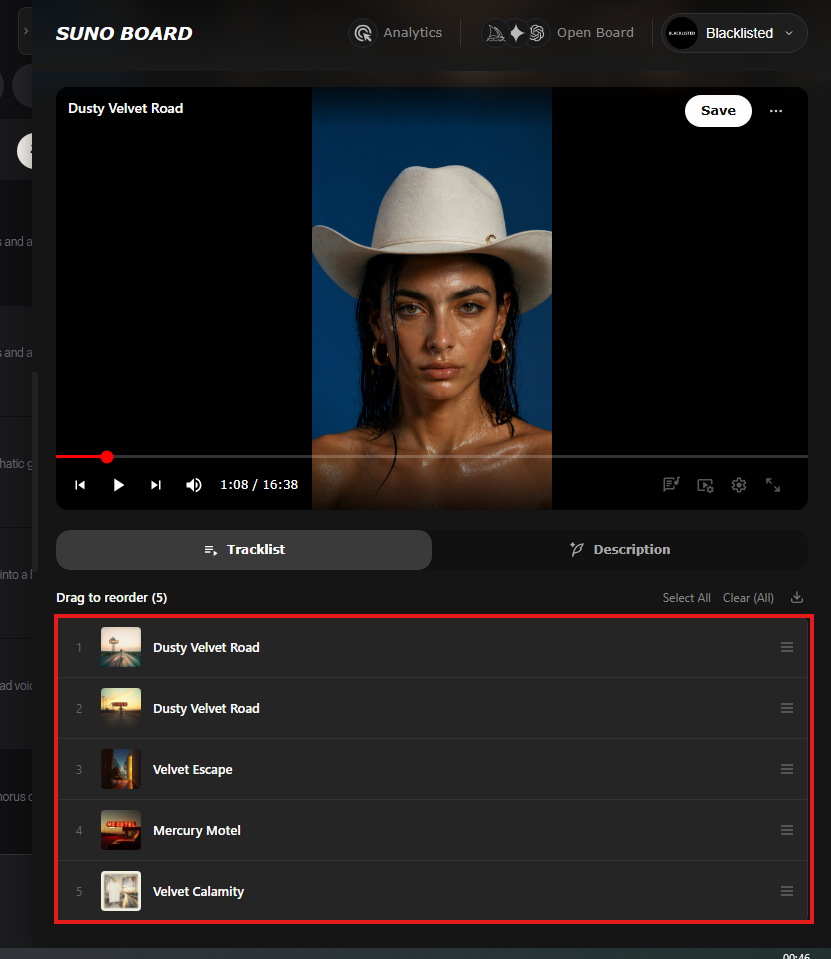
Build a tracklist
Drop multiple songs into the workspace to build a full tracklist video. The tracklist controls the song order and becomes the source for YouTube chapters.
Generate assets from the Board
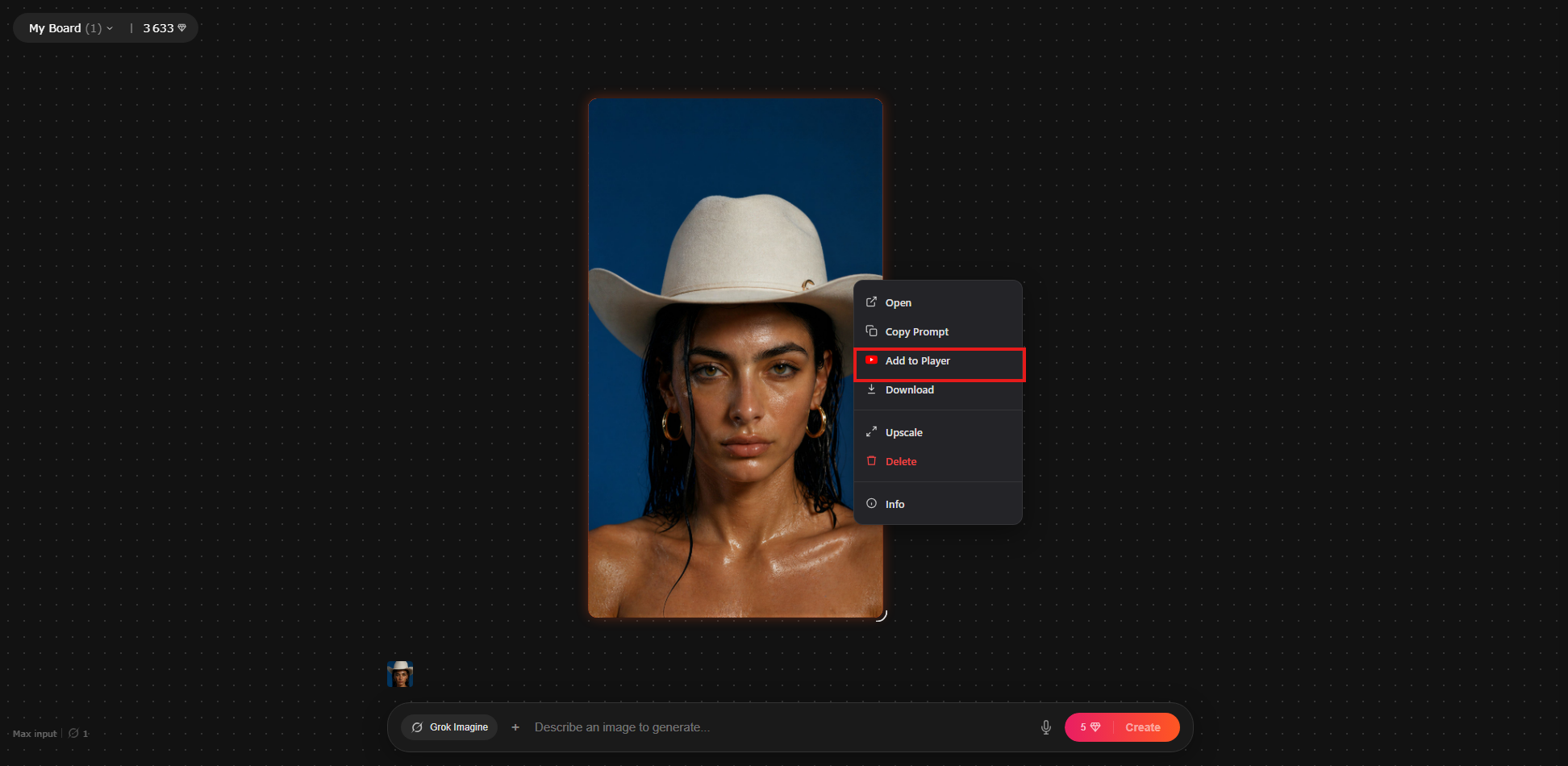
Create AI-generated images inside the Board and add them to the player so the video has publishable visuals instead of a blank upload.
Add lyrics or a visualizer
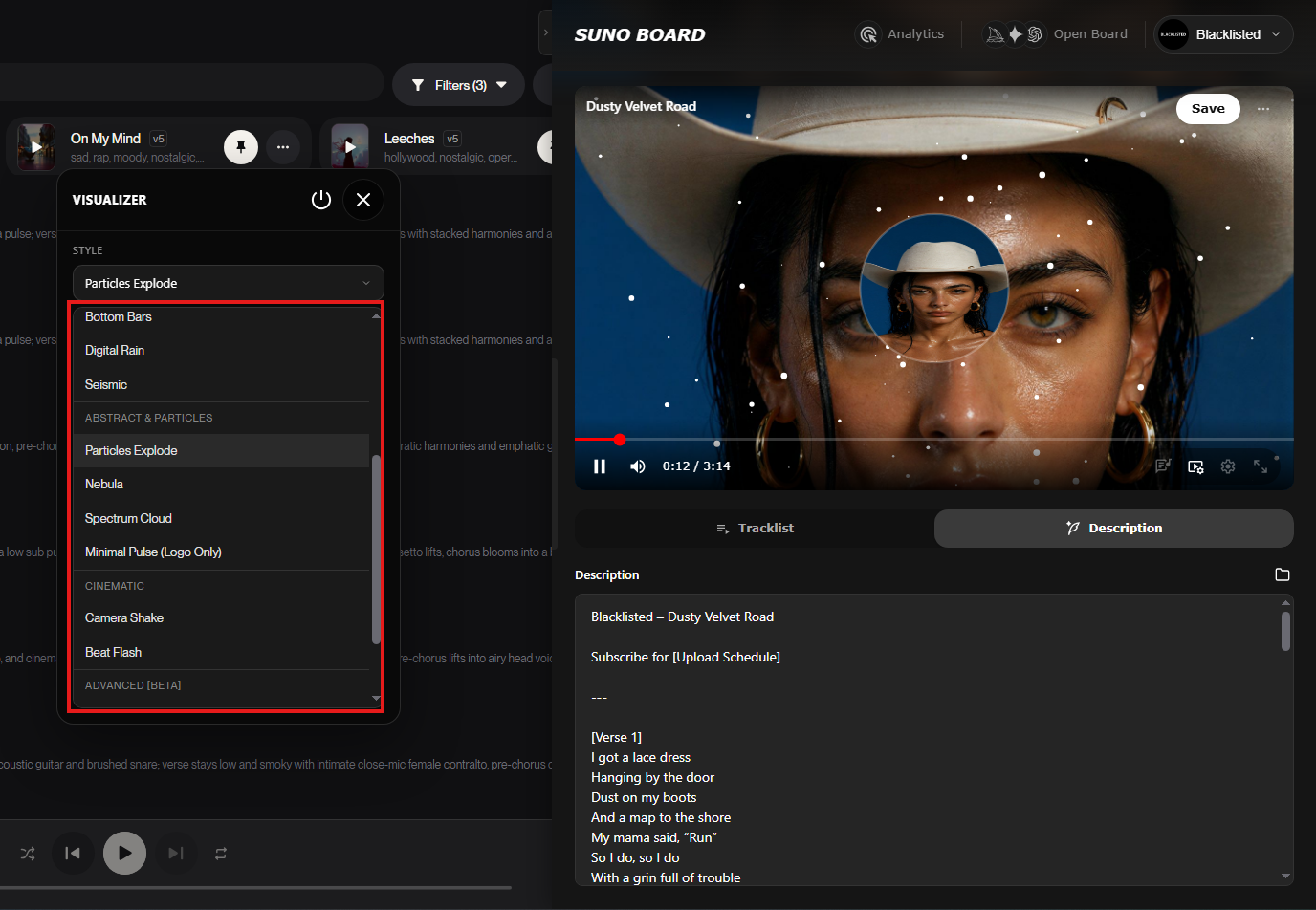
Choose the video layer that fits the release: lyrics, a visualizer, or both. Lyrics can be included when they are visible on Suno before you drag the song into the workspace.
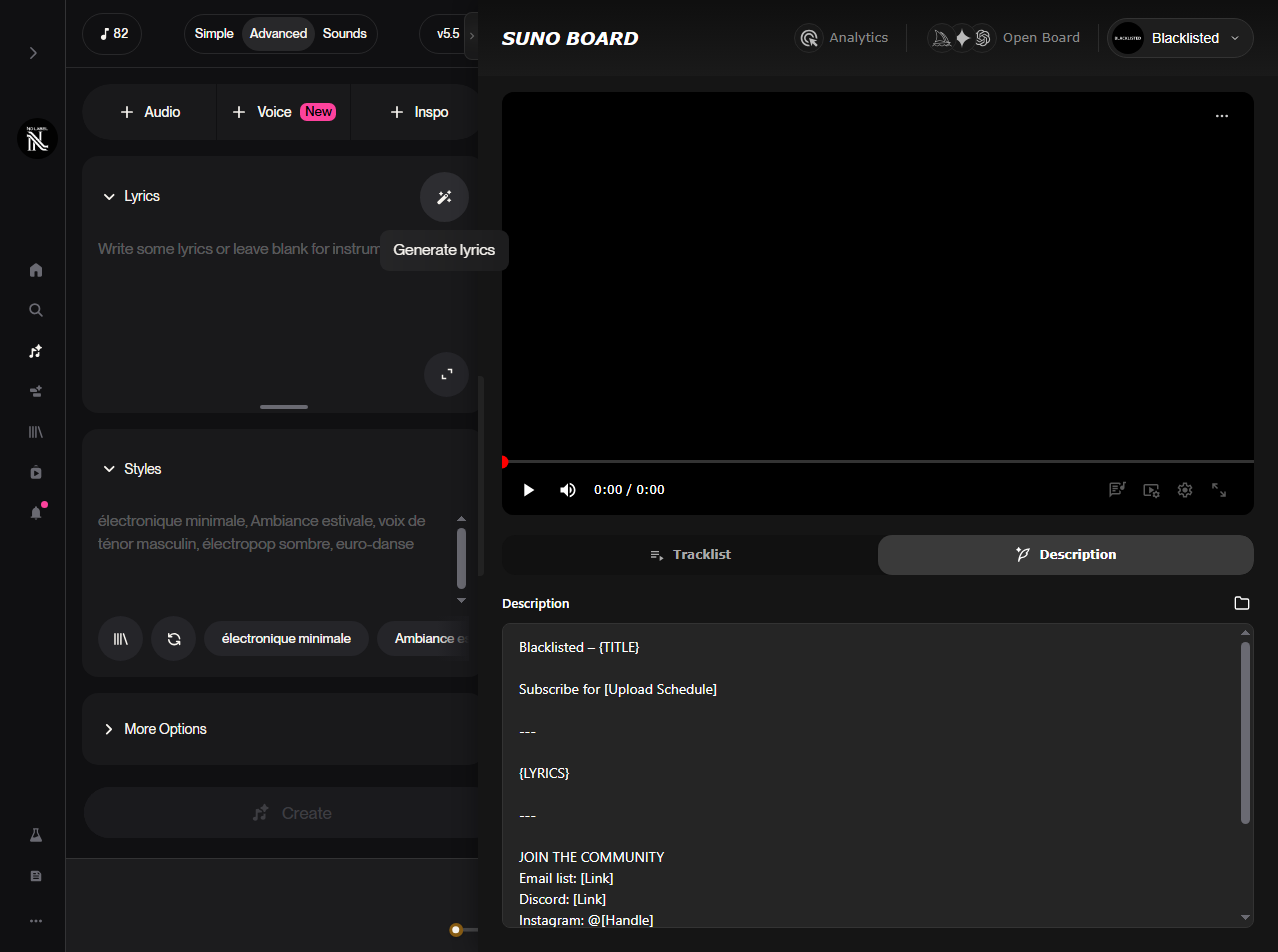
Generate the YouTube description
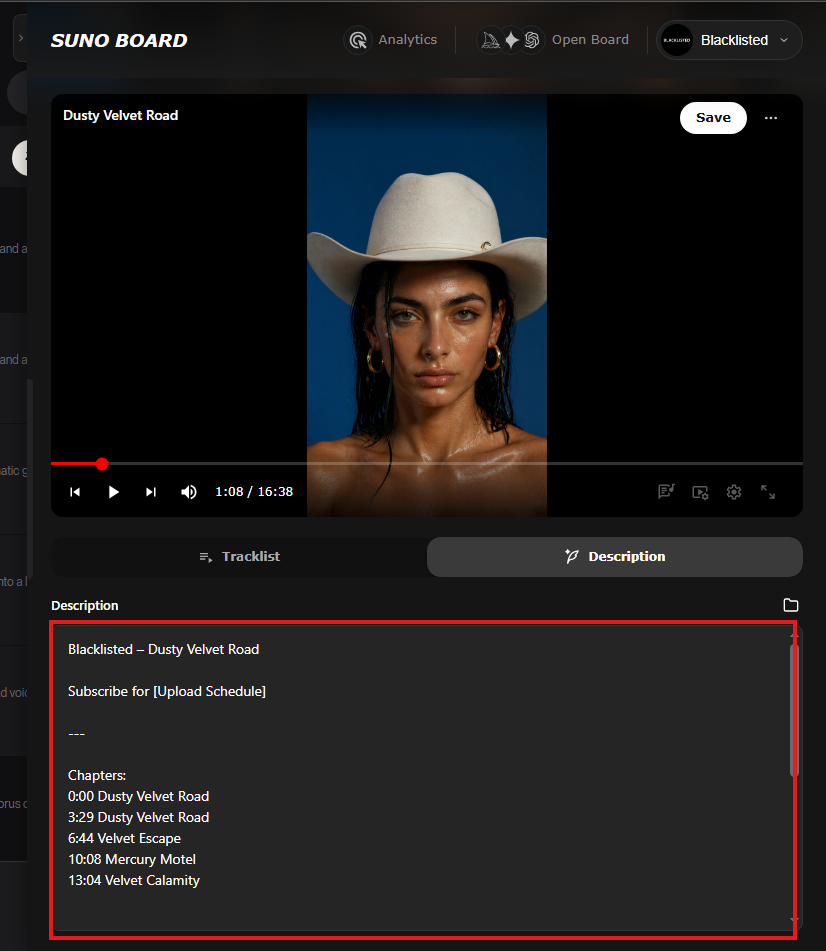
Open the Description tab to generate a YouTube-ready description with automatic chapters. If you reorder songs in the tracklist, Suno Board updates the chapter order and timestamps automatically. If you want lyrics included, open the lyrics on Suno first so they are visible, then drag and drop the song into the video workspace.
Download the video
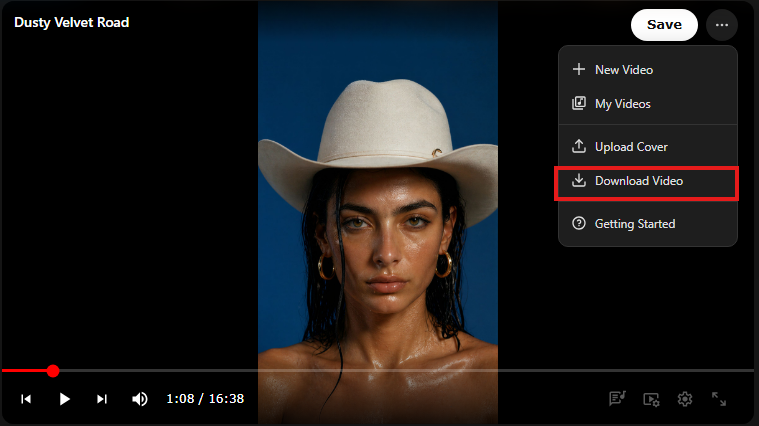
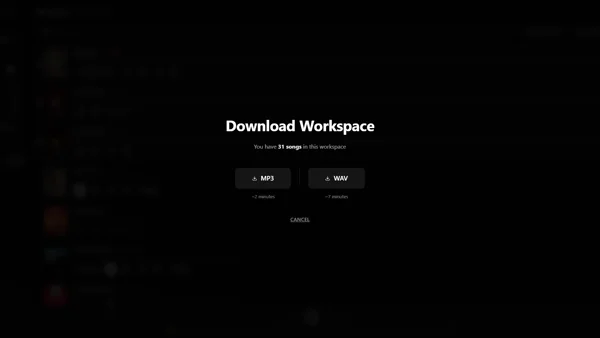
Click Download Video. The 1920x1080 MP4 downloads to your device with the original Suno audio muxed into the final file, ready to upload to YouTube.
What Suno Board does — and what you still do manually
Suno Board handles
- ✓ Creating the video file from your track
- ✓ Generating the YouTube description and timestamps
- ✓ Building the tracklist and auto chapter markers
- ✓ Keeping the audio and video workflow in your browser
You do manually
- — Upload the exported MP4 through YouTube Studio
- — Set the title, tags, and thumbnail
- — Check the AI content disclosure box in YouTube Studio
- — Publish the video
Suno Board does not currently publish directly to your YouTube channel.
What Suno Board gives you for YouTube
1920×1080 MP4 at 30fps
Full HD — YouTube's standard music video format
Four render modes
Visualizer, lyrics, both, or static background
AI-generated visuals on canvas
Polaroid-style image layout alongside the visualizer
Tracklist + auto YouTube chapters
Add multiple tracks — timestamps generated automatically
YouTube description generator
Pre-written, paste-ready description with AI disclosure
Runs entirely in your browser
Video rendering stays on your device — no upload to Suno Board
Works with your Suno library directly
No manual file imports — your tracks are already there
No video editing software
No timeline, no keyframes, no installs — one-click export
Common problems and fixes
"My video looks like a static image"
You likely selected the Static render mode. Switch to Visualizer or Lyrics + Visualizer in the Board toolbar to add motion throughout the video.
"No chapters appearing on YouTube"
YouTube requires at least three timestamps and the first must be 00:00. Make sure the auto-generated description has at least three chapter entries, and that 00:00 is the first line in the Chapters section.
"YouTube is adding an AI label I didn't choose"
YouTube detects AI content automatically. Check the "altered or synthetic content" box yourself in YouTube Studio. YouTube may apply labels or take action when altered or synthetic content is not disclosed correctly, so reviewing this step during upload is the safer approach.
"The video looks wrong on mobile"
Suno Board exports 16:9 horizontal video (1920×1080). This is correct for YouTube. It will show letterboxed on mobile if the viewer rotates their phone to portrait mode — that's expected behavior for horizontal video.
"I want a vertical video for Shorts"
Suno Board's standard export is 1920×1080 horizontal. For YouTube Shorts (9:16 vertical), use YouTube's built-in cropping tool after upload, or see our Suno to TikTok guide for vertical workflow options.
Privacy & rendering
Suno Board renders the final video entirely in your browser. Your Suno audio is never uploaded to Suno Board's servers. If you choose to generate AI visuals through supported model providers as part of the Board workflow, those requests are handled by the selected provider — your audio remains local throughout the video creation process. The exported MP4 lives on your device until you upload it to YouTube yourself.
Want to post on TikTok, Reels, or Shorts instead?
YouTube is horizontal. Short-form platforms are 9:16 vertical. Read the Suno to TikTok guide → for the vertical video workflow.
YouTube formats that work well with Suno Board
Single-track music video
One Suno song, one video — visualizer and lyrics from start to finish
Lofi / radio compilation
10–20 tracks, tracklist view, auto chapters — 45-min YouTube sessions
Album or EP release
Full album in one video with individual track chapters
AI art + music hybrid
AI-generated visuals and Suno audio together in one video
Genre showcase
Multiple tracks in the same genre — ideal for discovery
Lyric video
Lyrics-only mode — clean text on a dark or custom background
Mood / study playlist
Long-form ambient compilation — popular search format on YouTube
Channel trailer
Short compilation teasing your best Suno tracks for new visitors
Visual styles for YouTube music videos
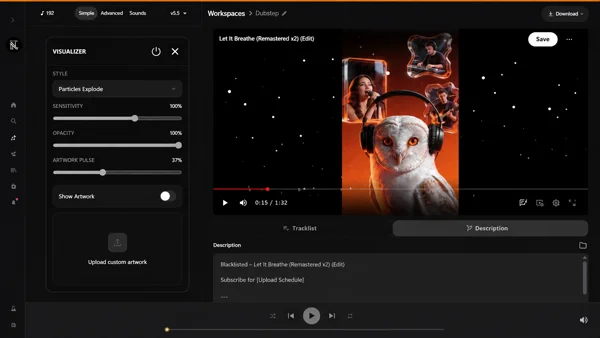
Visualizer only
Clean audio-reactive waveform. Dark background, minimal design — works for any genre.
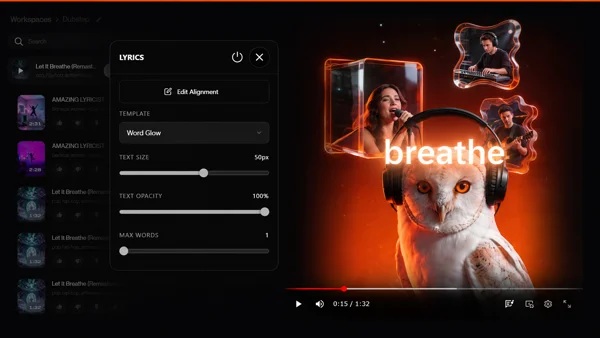
Lyrics only
Text-forward layout. Lyrics overlay on a background — great for word-heavy tracks.
Lyrics + Visualizer
Full production look. Both elements active — maximum visual engagement throughout.
AI-generated Polaroid images
Illustrated artwork from supported model providers arranged on the canvas.
Static visual
Your own background image fills the frame. Pair with a visualizer for motion.
Tracklist view
Multi-song layout with visible track list — perfect for compilation and album videos.
Frequently asked questions
Can I upload Suno music videos to YouTube?
Do I need commercial rights from Suno to post on YouTube?
How do I label AI content on YouTube?
Does Suno Board directly upload to YouTube?
What video format should I use for YouTube?
How do I get YouTube chapters with Suno Board?
Can I monetize a Suno music video on YouTube?
Does Suno Board create a thumbnail for YouTube?
What is the difference between uploading audio vs. a music video to YouTube?
Will YouTube flag my Suno video as AI content automatically?
Can I make a compilation of multiple Suno songs for YouTube?
How long does it take to go from a Suno track to a YouTube upload?
Turn your Suno tracks into YouTube videos today
Install Suno Board, open the Board workspace, and export your first 1920×1080 music video in minutes — free.
Install Suno Board — free to installChrome Web Store · No account required
Related guides