Suno Board → Suno Batch Downloader
Batch Download Your Suno Songs Instead of Saving Them One by One
Suno Board includes a Download Workspace feature that exports every song in your Suno workspace at once — audio files, lyrics, and metadata — directly to your computer. No clicking through each track. No third-party site. No upload.
If you have hundreds of Suno tracks, downloading them one by one becomes painful fast. The easiest way to batch download Suno songs is a Chrome extension that adds workspace-level export directly inside Suno.

Written by the Suno Board team
Tested with the current Suno web workspace interface. Updated May 2026.
The Problem With Downloading Suno Songs One at a Time
Suno's native download button works fine when you have a handful of songs. Once your library grows — and for active creators it grows fast — clicking download on every single track becomes genuinely unworkable.
Creators with large Suno libraries have described it exactly: "There is no proper way to export or back up your full library... the only official way is basically downloading them one by one." And: "Clicking one by one for hundreds of tracks wasn't an option."
The native approach also gives you nothing but the audio file. No lyrics. No metadata. No prompt. A library of 100 MP3s with no titles, no tags, and no organization is almost as useless as no backup at all. And whenever platforms change rules, update features, or adjust access, creators remember the same lesson: your best work should not exist only inside a cloud account.
One-by-One Download vs. Suno Board Batch Download
Here is what downloading looks like manually versus using Suno Board's Download Workspace feature.
| Feature | One-by-one | Suno Board |
|---|---|---|
| Export entire workspace at once | ✗ | ✓ |
| MP3 format | ✓ | ✓ |
| WAV format | ✓ | ✓ |
| Lyrics saved per track | ✗ | ✓ |
| Metadata saved per track | ✗ | ✓ |
| Clean, readable filenames | Limited | ✓ |
| Works across multiple workspaces | Manual | ✓ |
| Local processing — no server upload | ✓ | ✓ |
How to Batch Download Your Suno Workspace — Step by Step
Once Suno Board is installed, the Download Workspace option is always one click away from your current workspace. No separate app, no file uploader, no external service.
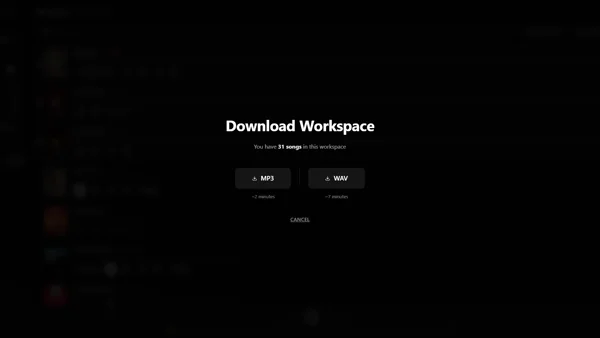
[ GIF: Download Workspace batch workflow ]
Open workspace → download panel → select format → toggle lyrics/metadata → Download Workspace → files saved
How to batch download a Suno workspace: step by step
6 steps — from workspace view to local export
Go to suno.com/create or your Suno library
Suno Board only activates on those pages — the Download button in the top bar will not appear anywhere else on Suno.

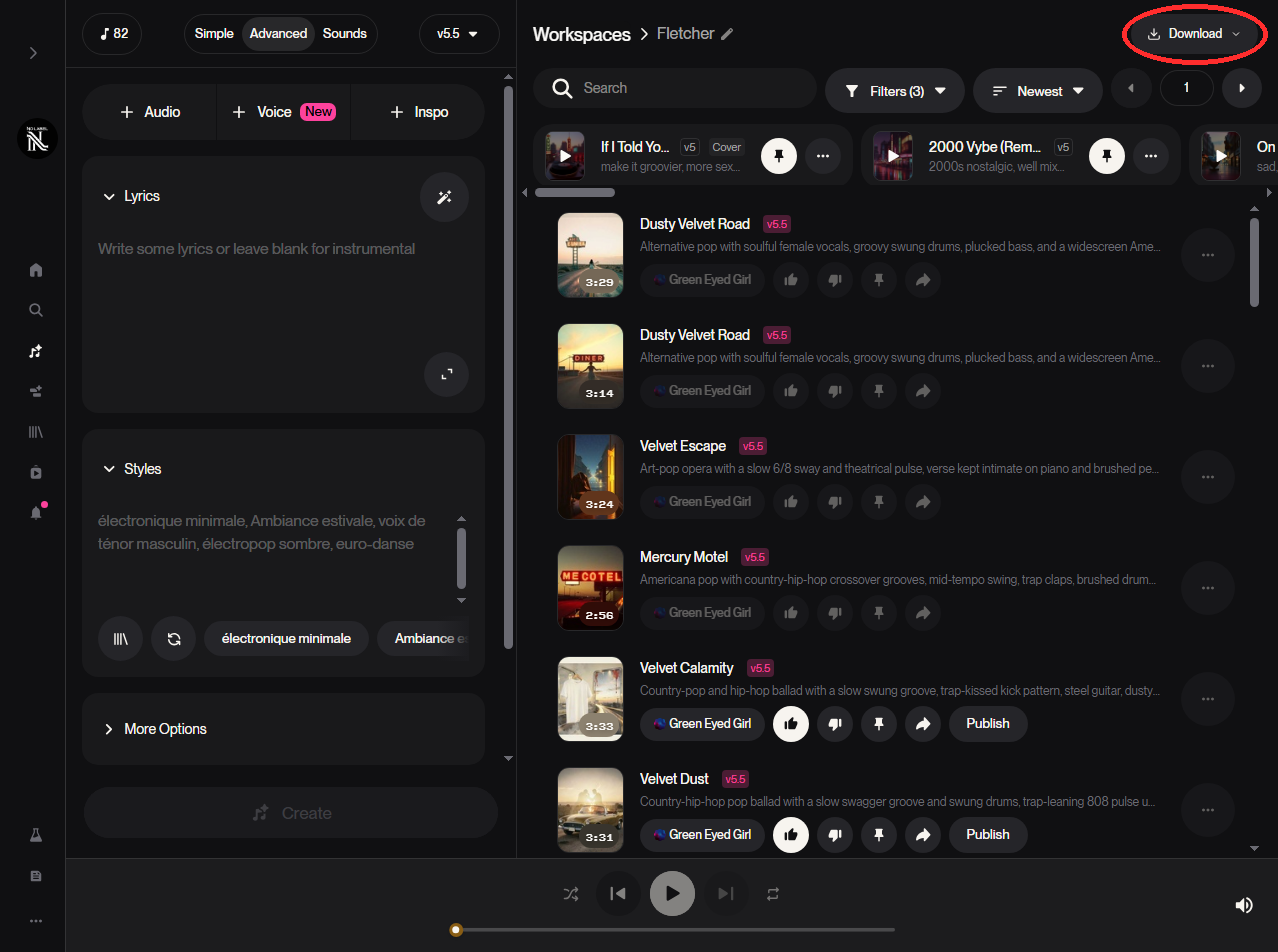
Click the Download button
Open the Suno Board download panel from the workspace top bar.
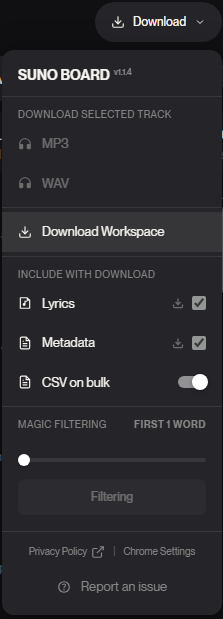
Toggle what to include
Under Include With Download, enable Lyrics and Metadata, decide whether to use CSV on bulk, then click Download Workspace.
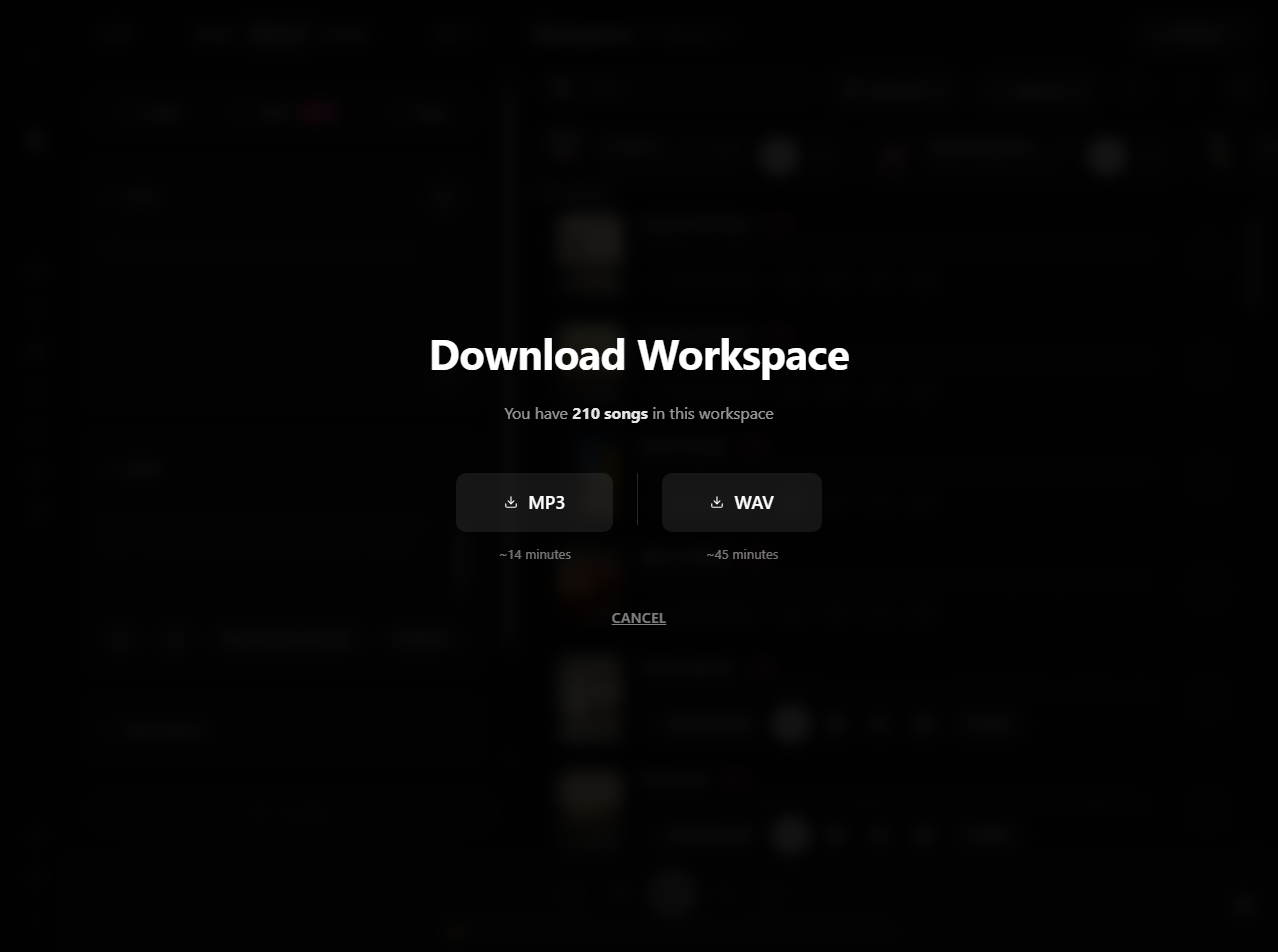
Click Download Workspace
This opens the workspace export screen where you choose the output format and see the estimated download time.

Download exactly what is in the current workspace
Choose MP3 or WAV, see the estimated export time, then download the exact tracks currently shown. If you filter the workspace first, Suno Board exports only those results — stems, disliked songs, or any other filtered view.
Repeat for other workspaces
Switch to the next Suno workspace and click Download Workspace again to export each one locally.
Why Batch Downloading Matters at Scale
A single track takes a few seconds to download manually. At 50 tracks, that is still manageable. At 192 tracks — which is a realistic library size for an active Suno creator — you are looking at an hour of repetitive clicking just to get your own music onto your own hard drive. That is before accounting for lyrics, metadata, or any kind of file organization.
Batch downloading is not a power-user feature. It is the baseline for anyone who creates regularly. The question is just whether you want to do it manually or let Suno Board handle it in one click.
Common Problems With Suno Batch Downloading
No batch option exists in native Suno
Suno's interface does not include a workspace export or batch download feature. Every download requires clicking the download button on each individual track. Suno Board adds this as a single-click workspace export.
Files saved as unreadable IDs
Many extensions export files using raw Suno track IDs as filenames. Once you have hundreds of files, your exported library is unsearchable. Suno Board saves every file with the actual song title.
Lyrics and metadata not included
A batch of MP3s with no lyrics, tags, or prompt data is hard to reuse. Suno Board includes both as toggleable options so your exported library retains full context for every track.
Browser freezing during large exports
Some extensions try to process or re-encode audio during batch export, causing memory issues and browser crashes. Suno Board is built to avoid unnecessary audio processing and preserve the source audio as closely as possible.
Extension stops working after Suno updates
Extensions built on fragile DOM scraping break silently when Suno updates their interface. Suno Board is built on Suno's session architecture and is actively maintained for compatibility.
100% Local — Nothing Uploaded to Any Server
Suno Board does not upload your songs to our servers. Batch downloads happen locally in your browser.
During a workspace download, each file transfers directly from Suno's servers to your device — the same path as a single-track download. Nothing is routed through Suno Board's infrastructure at any point. Your session token, your audio files, and your account data never leave your machine.
This is true for single downloads, workspace downloads, and every export Suno Board produces.
After You Back Up: What Creators Do Next
A backed-up library is the foundation. Once your songs are local, the next step for most creators is turning them into something publishable — a lyric video with synced text, a music video with AI-generated visuals, or a tracklist compilation. All of that happens inside the same Suno Board extension, without switching tools.
If you are just starting with Suno Board and want to understand the single-track download experience before running a full workspace export, the Suno downloader guide covers that in detail.
Frequently Asked Questions
Can I download all my Suno songs at once? ↓
Yes. Suno Board's Download Workspace option exports every song in your current Suno workspace in a single action — audio files, lyrics, and metadata — without clicking each track individually.
How do I batch download Suno songs? ↓
Install Suno Board from the Chrome Web Store. Open Suno.com, click the download arrow on any track to open the download panel, choose your format, toggle Lyrics and Metadata if needed, then click Download Workspace.
Can I batch download Suno songs as WAV? ↓
Yes. The WAV format option is available in the download panel and applies to the full workspace batch, giving you the highest-quality files available from Suno for every song.
Can I batch download Suno lyrics? ↓
Yes. The Lyrics toggle under Include With Download saves the full lyrics for every song in the workspace as text files alongside the audio.
Can I batch download Suno metadata? ↓
Yes. The Metadata toggle saves title, style tags, and prompt data for every song in the batch, so your exported library stays organized and searchable.
Will batch downloading get my Suno account banned? ↓
Suno Board uses your existing Suno session and downloads files the same way the native Suno download button does — directly from Suno's servers to your computer. Your session token never leaves your device. The extension is designed to work within normal usage patterns.
Can I batch download multiple Suno workspaces? ↓
Yes. Switch between workspaces in Suno and use Download Workspace on each one to export them locally. Each workspace is a separate download action.
Does the batch download include cover art? ↓
Suno Board downloads audio, lyrics, and metadata for each track. Cover art handling depends on what Suno makes available with the track data.
How do I organize my Suno library after batch downloading? ↓
Suno Board saves files with the song title as the filename rather than raw IDs. The metadata file for each track contains the title, tags, and prompt, which makes sorting and searching your exported library straightforward.
Does Suno Board upload my songs during a batch download? ↓
No. All downloads go directly from Suno's servers to your computer. Nothing is routed through Suno Board's servers at any point.
What is the best way to back up a large Suno catalog? ↓
Use Suno Board's Download Workspace on each of your Suno workspaces. Choose WAV for archiving or MP3 for a smaller footprint. Enable Lyrics and Metadata so the full context for each song is preserved locally.
Is Suno batch downloading free? ↓
Suno Board is free to install from the Chrome Web Store. Download Workspace is available within the extension.
 Install Suno Board from the Chrome Web Store
Batch download your Suno workspace as MP3/WAV with lyrics, metadata, and clean filenames — locally.